
Open booth sales
The launch checklist, sales modes, booth assignment, registration dates, and launching or pausing sales.
Registration & Orders is where you set up and run booth sales. The tabs are Overview, Setup, Checkout, Exhibitor Plus, Forms, Messages, Integrations and Orders.
Registration & Orders appears only when Booth Sales is included with your show. Booth Setup remains available for maintaining Booth Types and Booths & Services when Booth Sales is not included, but you cannot create or manage orders there. Contact Map D to add Booth Sales.
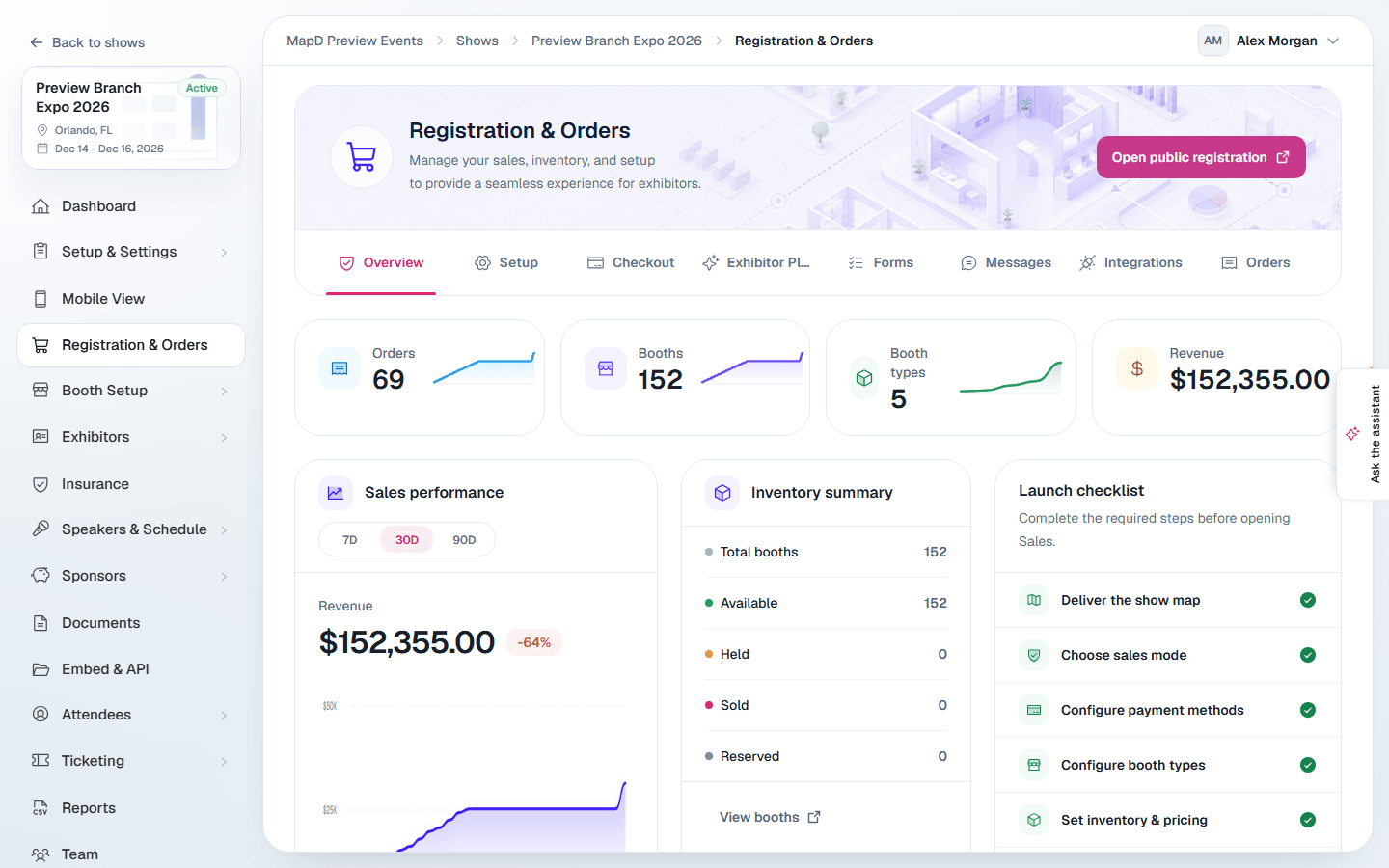
Overview and the launch checklist
Overview shows orders, booths and revenue at a glance, a sales chart, an inventory summary, and your Public registration link with Copy and Open link buttons. The link opens on the first map in your order. If your show has more than one published map, select the arrow beside Copy, or beside Open public registration at the top of the page, to copy a link that opens on a specific map.
The Launch checklist walks you through everything sales needs:
- Deliver the show map
- Choose sales mode
- Configure payment methods
- Configure booth types
- Set inventory & pricing
- Configure checkout settings
- Review registration form
- Review confirmation messages
When you are ready, select Launch Sales. Select Pause Sales to stop taking orders at any time. Sales can only open once your show map has been delivered.
Setup
| Setting | What it does |
|---|---|
| Sales mode | Disabled closes online sales. Direct purchase lets exhibitors buy straight away. Manager approval turns each order into a request you approve first. |
| Booth assignment mode | When a booth becomes the buyer's: After payment, After approval, or Manual assignment by you. |
| Max booths per order | The most booths one order can include. |
| Currency | USD, CAD, EUR or GBP. It cannot be changed after the first transaction. |
| Public instructions | Text shown above the floor plan on the booth registration page, until the buyer closes it. |
| Registration opens and closes | The dates online sales are open. |
Select Save changes when you are done.
How it looks to exhibitors
Use Open public registration (or Preview public map before launch) at the top of the page to see the floor plan the way buyers do. To understand their side step by step, see the exhibitor guides Choose a booth on the floor plan and Check out.
Next steps
Still need help?
Contact your Map D account team. Include your show name and, if something looks wrong, a screenshot of the page.
Last updated October 1, 2026