
Checkout forms and messages
Choose checkout fields and questions, write checkout and confirmation copy and terms, and set invoice emails.
Decide what you ask exhibitors at checkout, what they read along the way, and what they receive afterwards. These settings are on the Forms, Messages and Integrations tabs of Registration & Orders.
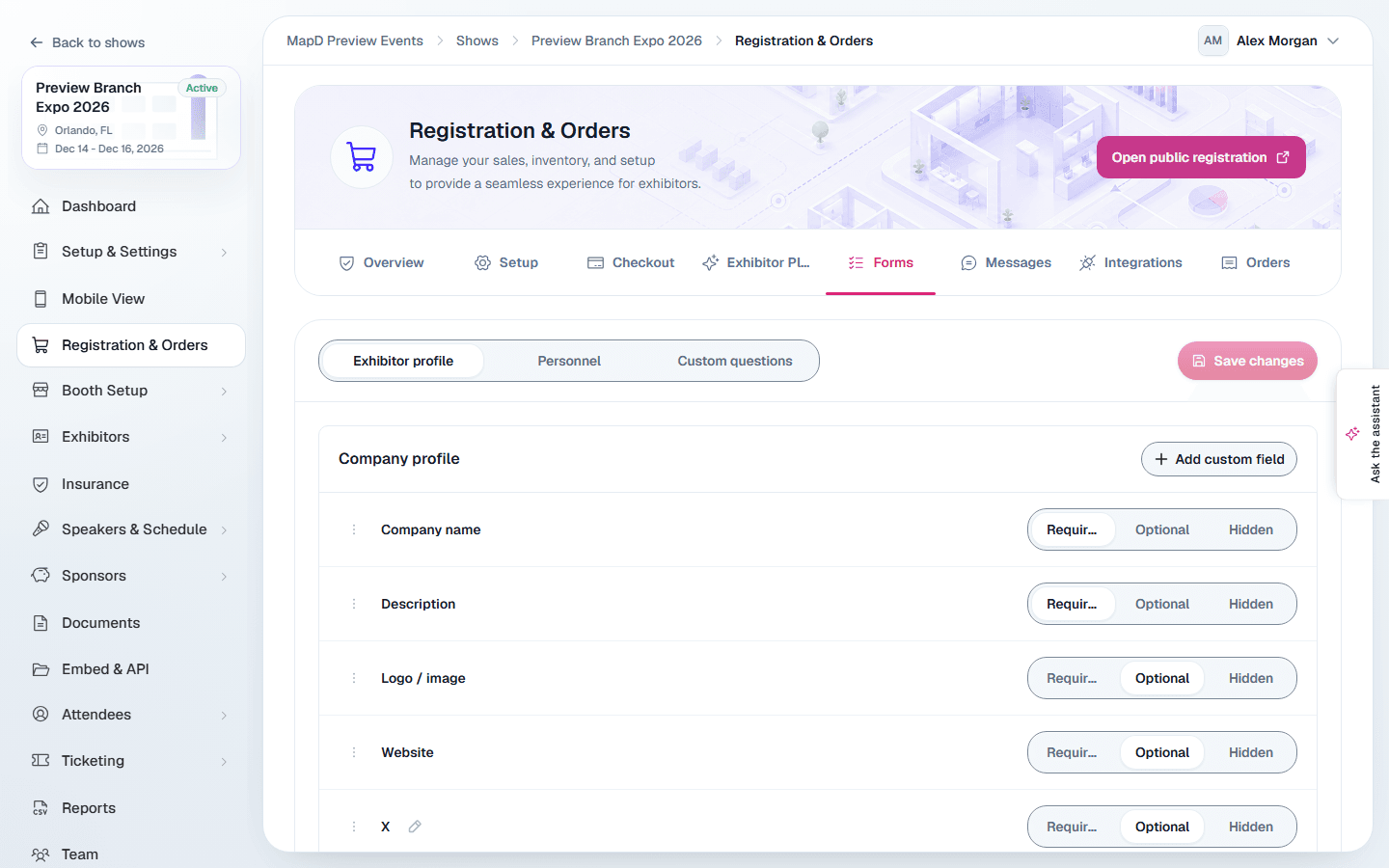
Forms
The Exhibitor profile and Personnel tabs list every field buyers fill in, grouped into company profile, public contact, administrative contact and personnel. For each field:
- Choose Required, Optional or Hidden.
- Rename it with the pencil icon.
- Drag it to change the order.
Select Add custom field to add your own. The administrative contact email is always required, because order emails go there.
Custom questions
On Custom questions, select Add question and choose a type: text, long text, yes / no, single select, multi select, file upload or number. Add Help text to explain what you need, and turn on Required if buyers must answer. Questions cannot be deleted. Turn Active off to stop asking one.
For a file upload question, buyers attach a PDF or JPG of up to 10MB at checkout. The file is kept privately with the order: open it from the order's registration answers.
Messages
Checkout copy
Add a short message at key points of checkout: when buyers reserve a booth, and on the services, profile, personnel, questions and payment steps. Each message has a title, body, optional link, and an Enabled switch, with a live preview.
Buyers see the body and link of every enabled message: in the booth details panel when they select a booth, at the top of the services, exhibitor info and payment steps, and inside the Staff / personnel and Custom questions sections. To hide a message, turn Enabled off.
Confirmation
- Success heading and Confirmation message: what buyers see after they submit.
- Recommended next actions: a short checklist for buyers, such as completing their profile.
- Support name and Support email: shown to buyers on the confirmation page as "Questions about your order? Contact ...". Leave the email empty to hide it. The name defaults to Exhibitor Support.
- Terms of service: turn on Require agreement and paste your terms. Buyers must scroll to the end and accept them before submitting. Turn on Also require agreement on the pay-your-balance page to ask for the same agreement when buyers pay a balance from an invoice or payment request link; until they accept, the payment buttons there stay off.
Invoice settings
Set the From name, Reply-to email, the Order confirmation email subject and Order confirmation email message, and your company details on the invoice. The Invoice email subject and Invoice email message are for the email sent with Send Invoice on an order, which has the invoice attached as a PDF; leave them empty for the standard wording. All four can use {buyer_name}, {company_name}, {event_name} and {order_number}. Choose who else gets a copy with Internal recipients and CC emails. The switches control what is sent:
- Send invoice with order: the buyer's confirmation email with the invoice PDF.
- Send internal order notification: an email to your team for each order.
- Include balance due details, Include booth assignment details and Include invoice link.
Registration types and NOVI
On Integrations, Registration types let you offer different entry points, such as members and non-members. Select Add registration type and choose how buyers get in: no login, an Access code, NOVI member login, or NOVI login without a membership check. If you use NOVI, enter your NOVI connection details under NOVI SSO first.
If your exhibitors register in RainFocus, RainFocus booth selection on the same tab lets them pick booths on your floor plan. See RainFocus booth selection.
Buyers pick a registration type before they see prices. See the exhibitor guide Registration types and access codes. Map D checks their choice again when they reserve a booth and when they submit the order, so a registration type can't be skipped, and each order shows the type it was placed under as its User Registration Type. When you edit an order, User Registration Type lists your show's registration types.
Still need help?
Contact your Map D account team. Include your show name and, if something looks wrong, a screenshot of the page.
Last updated October 1, 2026