
Checkout rules, fees and discounts
Set how long carts are held, add a processing fee, and create discount codes and booth quantity discounts.
The Checkout tab of Registration & Orders also controls how long carts are held, the fees you charge, and your discounts. Sections that need attention are marked Needs attention. Select Save changes in the bar at the bottom when you are done.
Reservation rules
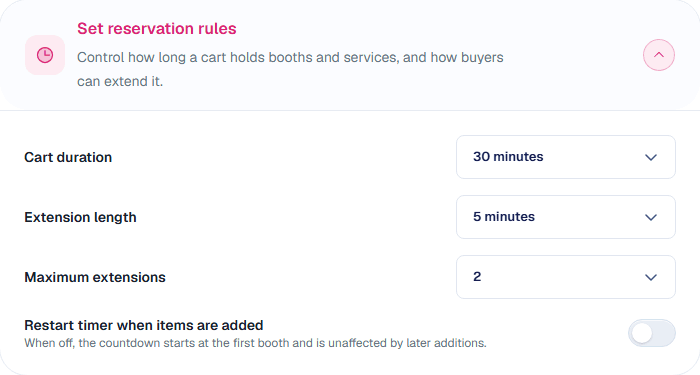
Under Set reservation rules:
| Setting | What it does |
|---|---|
| Cart duration | How long a buyer's booths are held while they check out: 10 to 60 minutes. |
| Extension length | How much time a buyer gets when they select I'm still here. |
| Maximum extensions | How many times a buyer can extend, or No extensions. |
| Restart timer when items are added | Reset the countdown each time a buyer adds a booth. |
Shorter holds free up popular booths faster. Longer holds suit buyers who need approval from a colleague before paying.
Fees
Under Configure fees, turn on Add a processing fee and set its Fee name, whether it is a percentage or a flat amount, and the Amount. Buyers see it as its own line before they pay.
Discount codes
Under Discounts, select Add discount and set:
- Code, for example
EARLY10, and a Name. - Type and Amount: a percentage or a fixed amount.
- Applies to: booths and services, booths only, or services only.
- Whether it Can be used with other discount codes. Off by default, so the code is used on its own. Turn it on for every code that may go on an order together.
- Whether it Can combine with booth quantity discounts.
Share the code with the exhibitors who should get it. They enter it in the Billing step of checkout and select Apply. Your codes are never shown on the public floor plan or checkout: Map D checks each one an exhibitor types, and limits how many tries they get.
Several codes on one order
An exhibitor can apply more than one code when every code on the order has Can be used with other discount codes turned on. A code with it off can't be added to an order that already has a code, and no other code can be added after it. An order can have up to 10 codes.
When several codes apply:
- Codes for booths only or services only are taken off first, then codes for the whole order.
- Each percentage is of the booths, services or order total before any code, so two 10% codes take off 20%.
- No code takes a part of the order below zero. A code that finds nothing left to discount takes nothing off.
You can change an order's codes yourself in Edit Order, under Applied Discount: tick the codes to apply. Codes that can't go with the ones already ticked can't be ticked, and say why.
Booth quantity discounts
Reward exhibitors who buy several booths. Under Booth quantity discounts, select Add tier and set the Min booths, the Type and Amount, and whether it applies to each booth or once to the booth subtotal.
Still need help?
Contact your Map D account team. Include your show name and, if something looks wrong, a screenshot of the page.
Last updated September 28, 2026