
Check out
Each checkout step: package options, exhibitor info, billing, discount codes, review and terms.
Checkout walks you through a few steps shown across the top of the page. Your booths stay held while you work, as long as the timer has time left. See Booth holds and the checkout timer.
The Order summary on the side shows your booths, services, discounts, fees and total at every step.
Some organizers charge less per booth when you buy several of the same type: the Order summary shows the lower price with Price for 2+ … booths, and the floor plan's cart shows the saving as Quantity prices. Some organizers also include booths with a purchase, for example a sponsor booth that comes with standard booths, or a sponsorship that covers your booth. You still pick those booths on the floor plan. The Order summary shows them at no charge with what they are included with, and the floor plan's cart shows the saving as Included booths.
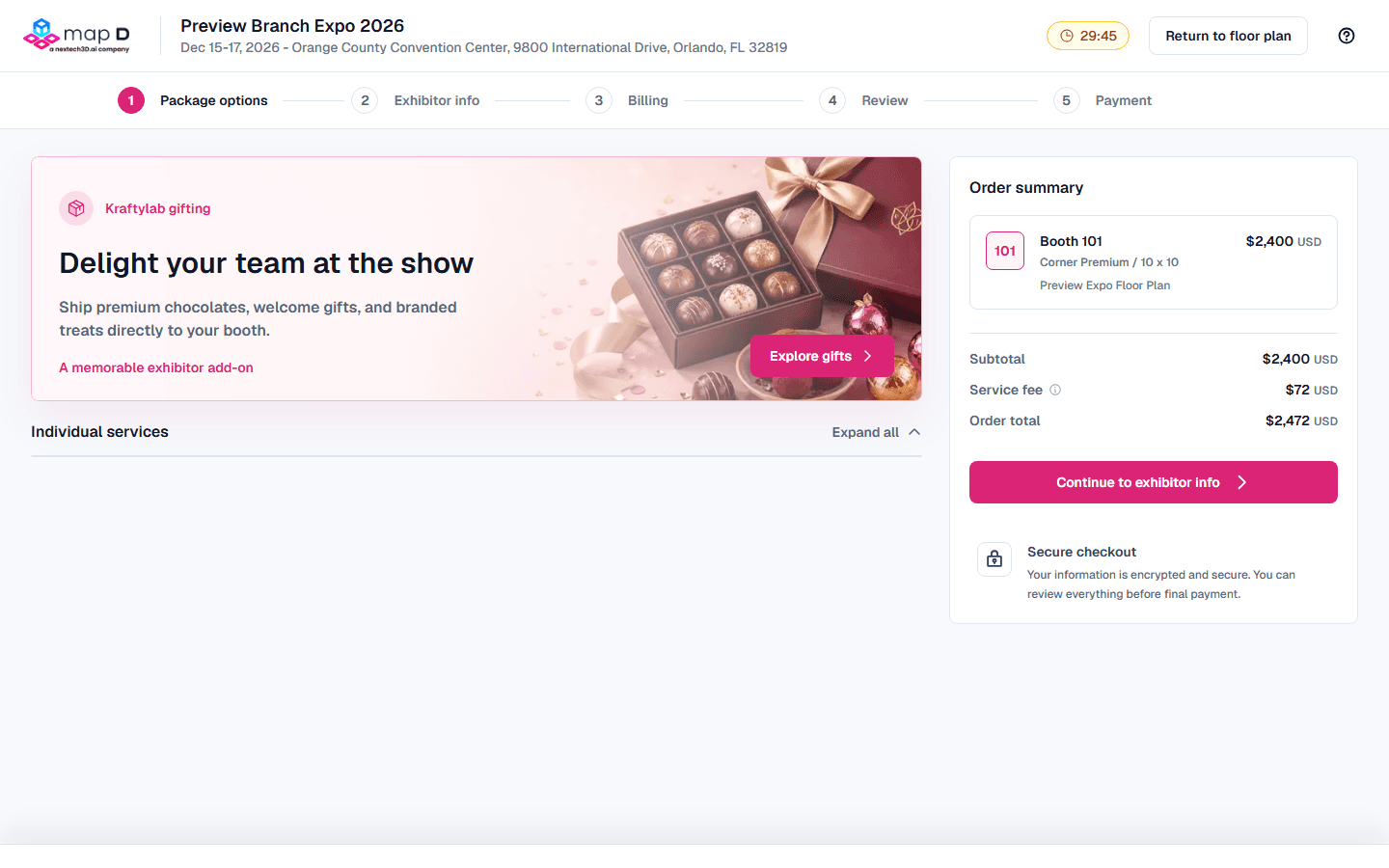
1. Package options
- Exhibitor profile upgrade: if your organizer offers Exhibitor Plus, choose between the basic profile and the expanded one. The expanded profile adds features such as booth staff, products and videos to your listing, and the table shows exactly what each includes. Some booths include it at no extra charge.
- Individual services: add furniture, electrical, sponsorships and other items. Items marked Requires a booth can only be added with a booth in your cart.
Select Continue to exhibitor info.
2. Exhibitor info
Fill in each section in turn. The next one unlocks when the current one is complete:
- Company information
- Buyer / admin contact: the person who receives the receipt and manages the order.
- Public exhibitor profile: what attendees will see.
- Staff / personnel: only with Exhibitor Plus, if your organizer collects staff here.
- Custom questions: anything extra your organizer asks. Some ask for a file: choose a PDF or JPG of up to 10MB and it uploads right away, showing its name once it is attached.
Required fields are marked. Map D tells you which ones still need attention.
3. Billing
- Payment method: choose from the methods your organizer accepts. See Pay for your order.
- Discount code: if you have one, type it and select Apply. Codes aren't case-sensitive. "That discount code isn't valid for this show" means it was mistyped or has ended. After too many tries you have to wait a few minutes. Each applied code is listed with what it takes off, and the X next to it removes it. To use another code, type it under Add another code and select Apply. Some codes can't be combined with other codes: checkout tells you, and you can remove one to use the other. If a volume discount also applies, Map D uses whichever saves you more.
- Billing details: tick Same as company/contact or enter a separate billing contact and address.
If your organizer takes a deposit, a Payment schedule shows what is due today and when the remaining balance is due. Some organizers let you choose how much to pay online: under How much to pay now, select Pay a different amount and enter an amount in the range shown. The rest stays on your order to pay later.
4. Review
Check each section and use Edit to fix anything. What happens next explains what submitting does for your order.
Terms
If your organizer requires it, open the terms and scroll to the end. Accept terms becomes available at the bottom. You cannot submit until the terms are accepted.
Submit
The button depends on how you pay:
- Continue to payment for card or bank account.
- Submit order for offline payment for check, wire or invoice.
- Submit booth request if your organizer approves orders first. Your booths stay reserved while they review, and you pay once they approve.
5. Insurance and payment
Some shows then ask about liability insurance. You can upload a certificate, buy a policy, or select I'll do this later. Card and bank account payments finish on the Payment step. See Pay for your order.
Still need help?
For questions about your show, booth or invoice, contact your show organizer. Their contact details are in your invite and order emails. Who to ask
Last updated September 28, 2026