
Set up onboarding tasks
Build the checklist exhibitors complete, review uploads, and track who is behind.
An onboarding checklist tells every exhibitor what you need from them and by when, and shows you who is behind. Set it up on the Onboarding tab of Exhibitors.
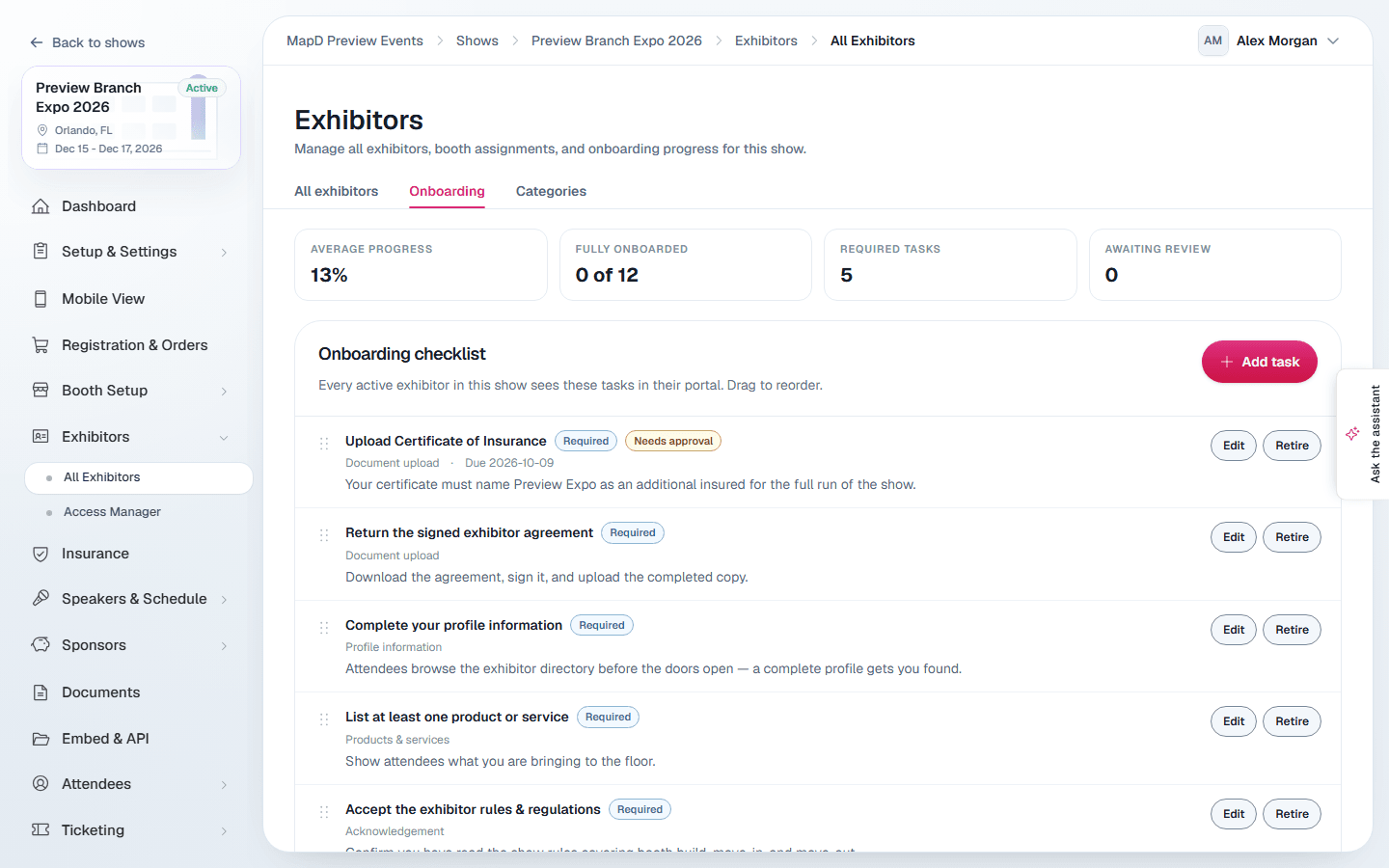
Build the checklist
Select Add task and choose How it gets completed:
| Task type | Completes when |
|---|---|
| Profile information | The exhibitor fills in the profile fields you pick: description, logo, public contact, address, website or category. |
| Products & services | They list at least the Minimum required number of products. |
| Booth personnel | They add at least the minimum number of staff. |
| Booth assignment | You assign them a booth. |
| Certificate of insurance (Vertical Insure) | Their insurance is in place. |
| Document upload | They upload a file. You can attach a Blank form to download. |
| Acknowledgement | They select Mark as done, optionally after opening a link you provide. |
For each task, add Instructions for the exhibitor and an optional Due date. Choose whether it is Required, counting toward their progress. Upload and acknowledgement tasks can also Require my approval before they count as complete.
Drag tasks to reorder them. Retire a task you no longer need: exhibitors stop seeing it, and everything they already sent for it is kept. A retired task stays in the list, so you can Restore it later.
Exhibitors see the checklist at the top of their portal. See the exhibitor guide Complete your onboarding checklist.
Review submissions
Waiting on you lists submissions that need your approval.
- Select Approve to accept one.
- Select Reject, write what needs to change, and select Send rejection. The exhibitor sees your note and can submit again.
Track progress
The top of the tab shows average progress, how many exhibitors are fully onboarded, and how many submissions await review. The Exhibitor progress table shows each exhibitor's progress, status and flags, such as overdue tasks.
On an exhibitor's own profile, Mark complete overrides a task for them, for example when they sent a form by email instead.
Remind exhibitors who are behind
In the Email Center, write an exhibitor email and go to Recipients. Change All exhibitors to Onboarding not complete or Onboarding not started, then use Select all to address the email to just those exhibitors. See Send emails from the Email Center.
Still need help?
Contact your Map D account team. Include your show name and, if something looks wrong, a screenshot of the page.
Last updated September 30, 2026