
An exhibitor's profile and View as exhibitor
Everything about one exhibitor in one place, and how to see and edit their portal as they do.
Open any exhibitor from Exhibitors to see everything about them in one place.
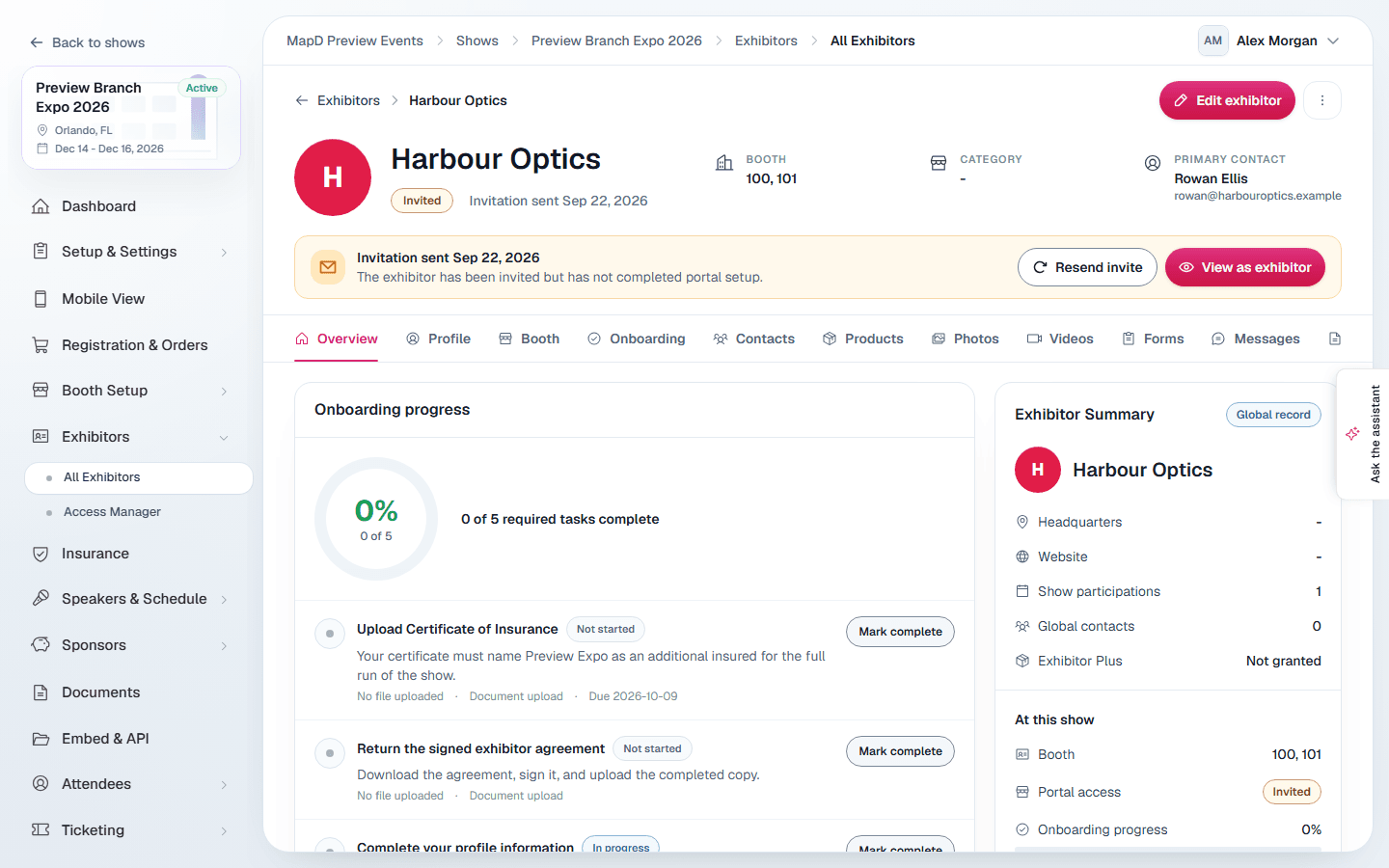
The exhibitor profile
The tabs are Overview, Profile, Booth, Onboarding, Contacts, Products, Photos, Videos, Forms, Messages and Orders.
- Overview shows their booth, categories and Exhibitor Plus status, their onboarding progress, and recent activity such as when their portal invite was sent.
- Onboarding lets you view uploaded files, approve or reject submissions, and Mark complete or Undo complete on their behalf.
- Orders lists what they have bought.
Select Edit exhibitor to change their details.
Exhibitor Plus status
The Exhibitor Plus line tells you how they have it: included with their booth or booth type, included for the whole show, purchased at checkout, imported, or granted manually. Not granted means they do not have it, so their portal is limited.
Other actions
From the menu on the profile:
- View as exhibitor: see and edit their portal exactly as they do.
- Manage portal access: change their Portal login email or lock their access.
- Send message: opens the Email Center with the exhibitor template, addressed to them. See Send emails from the Email Center.
- Archive profile.
Use Send invite or Resend invite to invite them to their portal.
Merge duplicate records
Some exhibitors are your own records of a company that has never signed in to its portal, such as exhibitors moved from your previous platform without a login email. Each of these records stays private to your organization and is never joined to another record automatically, so the same company can appear at your shows over the years as separate records.
On the Profile tab of such an exhibitor, Merge records lists your other records with the same name, and the shows each one is in. Use Search to find a record under a different spelling.
Tick the records that are the same company
A record that is also an exhibitor at one of this record's shows can't be ticked: in that show they are two separate exhibitors.
Select Merge into this record
Check the shows listed, then select Merge records. Their listings, orders and speaker links move to this record and the merged records are removed. This can't be undone.
Merge records doesn't appear for a company that manages its own portal account, or on a show that is read-only.
When the exhibitor signs in
You can invite one of your own records to its portal like any other exhibitor. Once someone has signed in, Merge records shows their email, and you decide whether the record is theirs:
- If they already sign in as a company, Join to their company moves this record's listings at your shows, and their orders, to that company.
- If not, Make it their company turns this record into the company they sign in as.
Select Confirm to finish. Either way the record stops being your private one, and other organizers can add the company to their shows. Check the company name first: one email can belong to an agency that exhibits for several companies. If their company is already an exhibitor at one of this record's shows, the two can't be joined.
View as exhibitor
View as exhibitor opens their profile the way it looks in their portal, with the tabs their features allow. It is the fastest way to answer "what am I supposed to fill in?" or to fix a typo for them.
Select Back to exhibitor when you are done.
Still need help?
Contact your Map D account team. Include your show name and, if something looks wrong, a screenshot of the page.
Last updated September 29, 2026