
Speakers and your schedule
Add and import speakers, invite them to manage their profile, and build tracks and sessions.
If your show includes Speakers & Schedules, you manage speakers and sessions under Speakers & Schedule in the show sidebar. Everything here feeds your Homebase and mobile app.
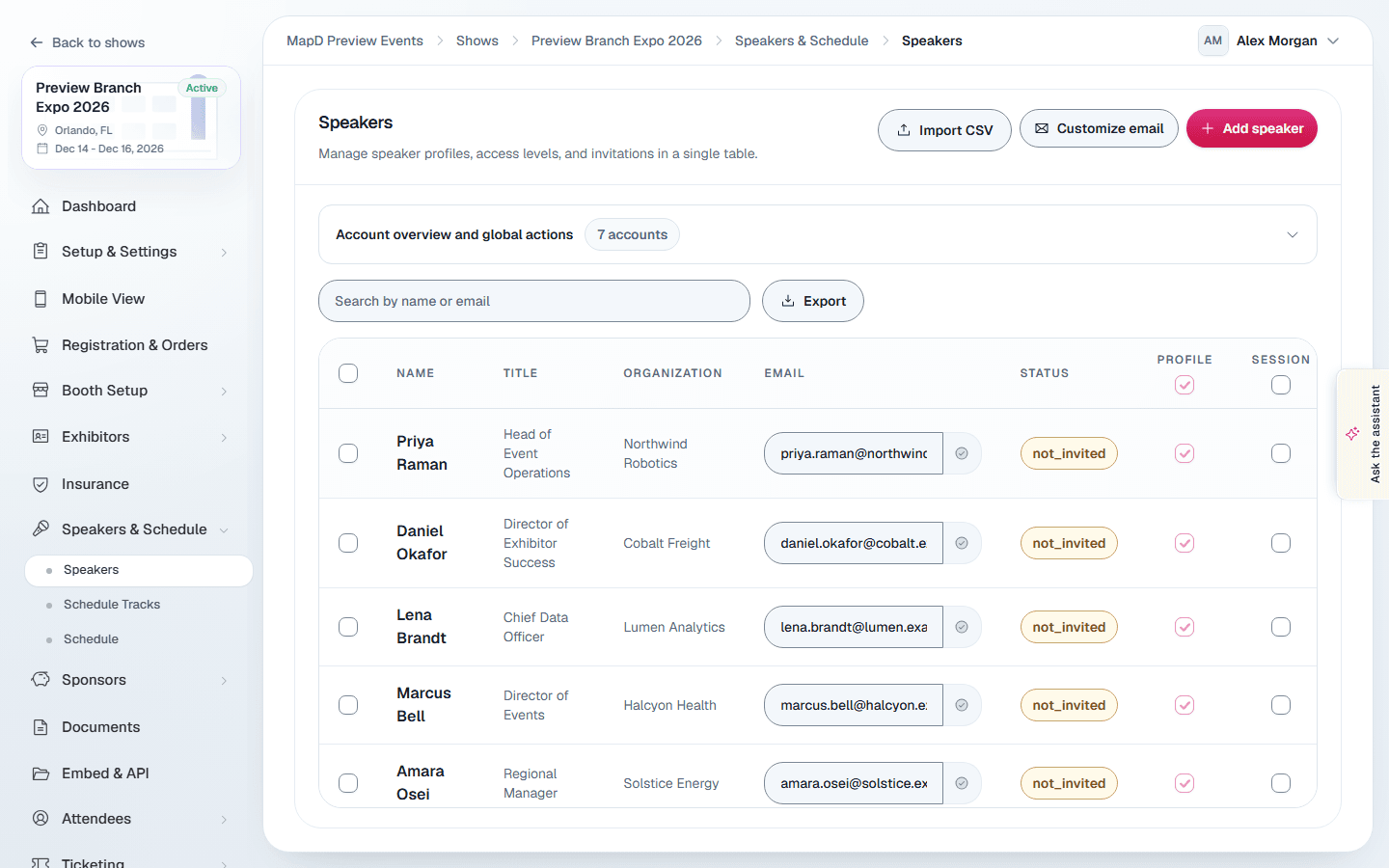
Speakers
Add speakers
- One at a time: select Add speaker and fill in their name, title, organization, email, photo and biography, plus their website and social links. Select Create speaker.
- From a spreadsheet: select Import CSV and upload a file in the template format, with the columns
first_name,last_name,prefix,suffix,title,organization,email,biography,avatar_urlandsocial_links. Choose Append to existing speakers or Replace all existing speakers.
Turn on Keynote speaker to mark someone as a keynote. Their card and profile on your Homebase then say Keynote instead of Speaker, and the speaker list shows a Keynote tag next to their name.
After saving a speaker, the Related exhibitors tab links them to exhibitor companies, for example a keynote sponsor.
Invite speakers to manage their own profile
Open Account overview and global actions at the top of the speaker list:
- Assign Emails to Individual Accounts, or use Use Profile Email on selected rows.
- Send Invitations to Newly Assigned Accounts and Resend Invitations to Already Invited Accounts.
The Profile and Session columns control whether each speaker can edit their profile and their session details. Select Customize email to change the invitation text. You can also copy a speaker's invite link from the menu on their row.
Speakers accept their invite, set a password, and then sign in to My Profiles.
Schedule
Tracks
Schedule Tracks are categories for your sessions, such as "Keynotes" or "Workshops". Select Add Track and give it a name, optional subtitle and color.
Sessions
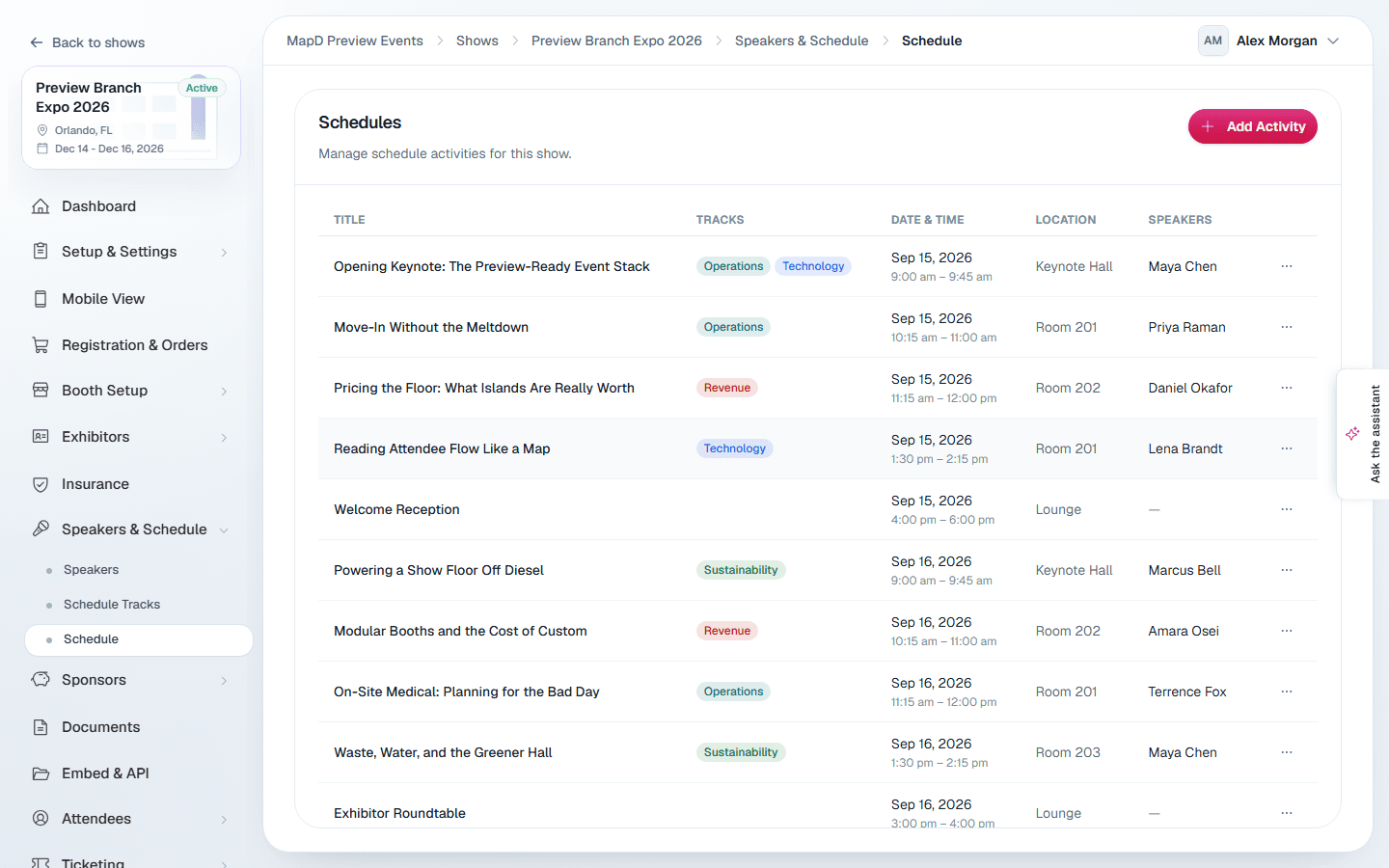
Select Schedule, then Add Activity. The wizard has four steps:
- Activity Details: title, description, tracks, date, location, start and end time, speakers, and a corner logo. Turn on Set as Group Header to make it a section divider instead of a session.
- Stream Embed: paste embed code from your streaming platform, if the session is streamed.
- Videos, Files & Links: web conference links, pre-recorded videos, downloadable files and website links.
- Exhibitors: related exhibitors, such as the session sponsor.
Select Save & Exit at any step, or Done at the end.
On your homebase schedule, each session shows its tracks by name, and opening it lists the stream, links, videos and files from steps 2 and 3 under Resources. A link opens in a new tab and a file downloads. Visitors can select Print schedule to print the sessions they are looking at, a day at a time, with each one's time, location, tracks and speakers.
Check-in, feedback, live polls and Q&A for your sessions in the mobile app are set up under Mobile View. See Your show's mobile app.
Event Checkup reminds you about speakers without a bio or photo and sessions with no speaker. See Get your show ready with Event Checkup.
Speakers and sessions from your previous platform
If your show moved to Map D from your previous platform, its speakers, tracks, sessions and sponsors came with it, in the order you had them there.
- Speakers keep their photo, biography, website and social links, and related exhibitors. A speaker who had an account there shows the same Status, and Session is ticked if they could edit their sessions.
- Sessions keep their date, times, location, tracks, speakers, related exhibitors, corner logo, and their links, videos and files.
- A session whose end time was earlier than its start time has no end time. Set one in Activity Details after your move.
- A stream embed that wasn't an HTTPS iframe was left out. Paste it again in Stream Embed.
- Speakers marked Keynote there have Keynote speaker turned on here.
Still need help?
Contact your Map D account team. Include your show name and, if something looks wrong, a screenshot of the page.
Last updated September 30, 2026