
Complete your onboarding checklist
What each task status means, which tasks complete themselves, and how to upload documents and fix rejected tasks.
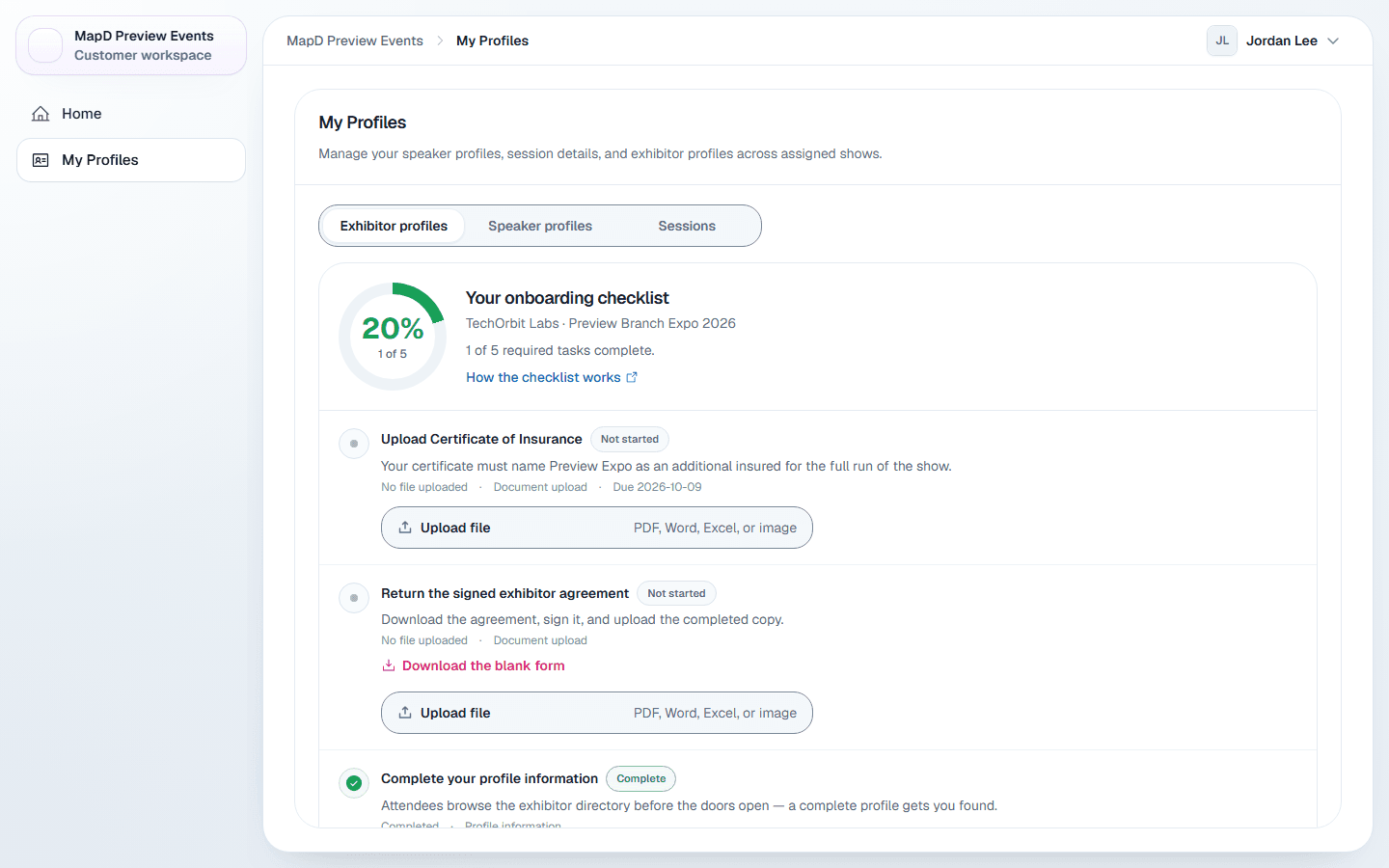
Many organizers set a list of things each exhibitor must finish before the show: a complete profile, booth staff, signed forms and so on. In Map D this is Your onboarding checklist, shown at the top of My Profiles, one checklist per show.
The progress dial shows how many required tasks are done. When everything is finished, the checklist says so and nothing else is needed from you.
Task statuses
| Status | What it means |
|---|---|
| Not started | Nothing done yet. |
| In progress | Partly done, for example two of three required products added. |
| Awaiting review | You submitted it and your organizer needs to approve it. |
| Action needed | Your organizer sent it back, or your insurance was declined or canceled. Read the note in red. |
| Complete | Done. Nothing more to do. |
A red Overdue tag appears once a task's due date has passed. Tasks tagged Optional do not count toward your progress.
Tasks that complete themselves
Some tasks tick off automatically as you fill in your profile. The task line tells you what is still missing.
- Profile information: fill in the fields your organizer requires, such as description and public contact, and sometimes logo, address, website or category. The task lists what is missing. Use Edit profile on your row.
- Products & services: add at least the number of products your organizer asks for.
- Booth personnel: add at least the number of staff your organizer asks for.
- Booth assignment: completes when your organizer assigns you a booth. There is nothing for you to do.
- Certificate of insurance: completes when your insurance is in place. See Insurance and your certificate of insurance.
Tasks you complete yourself
Upload a document
Get the form, if there is one
If your organizer attached a template, select Download the blank form, fill it in and save it.
Upload your file
Select Upload file and choose your document. PDF, Word, Excel, text and image files up to 20 MB are accepted.
Wait for approval, if needed
If your organizer reviews uploads, the task shows Awaiting review. Otherwise it is complete straight away.
To send a different file, select Replace file. You can select Remove to take a file back until it is approved.
Acknowledge something
Some tasks ask you to read a document or agree to something. Open the linked document, then select Mark as done. Changed your mind? Select Undo.
If a task is sent back
When your organizer rejects a submission, the task shows Action needed and their reason appears in a red box. Fix what they asked for and submit again. The old note clears when you do.
Still need help?
For questions about your show, booth or invoice, contact your show organizer. Their contact details are in your invite and order emails. Who to ask
Last updated September 25, 2026