
Find your exhibitor profile
Where your exhibitor portal is, what each column and button on your profile row does, and why a show might be missing.
After you sign in, Map D opens My Profiles. This page is your exhibitor portal: every show you exhibit at with this organizer is listed here, one row per show.
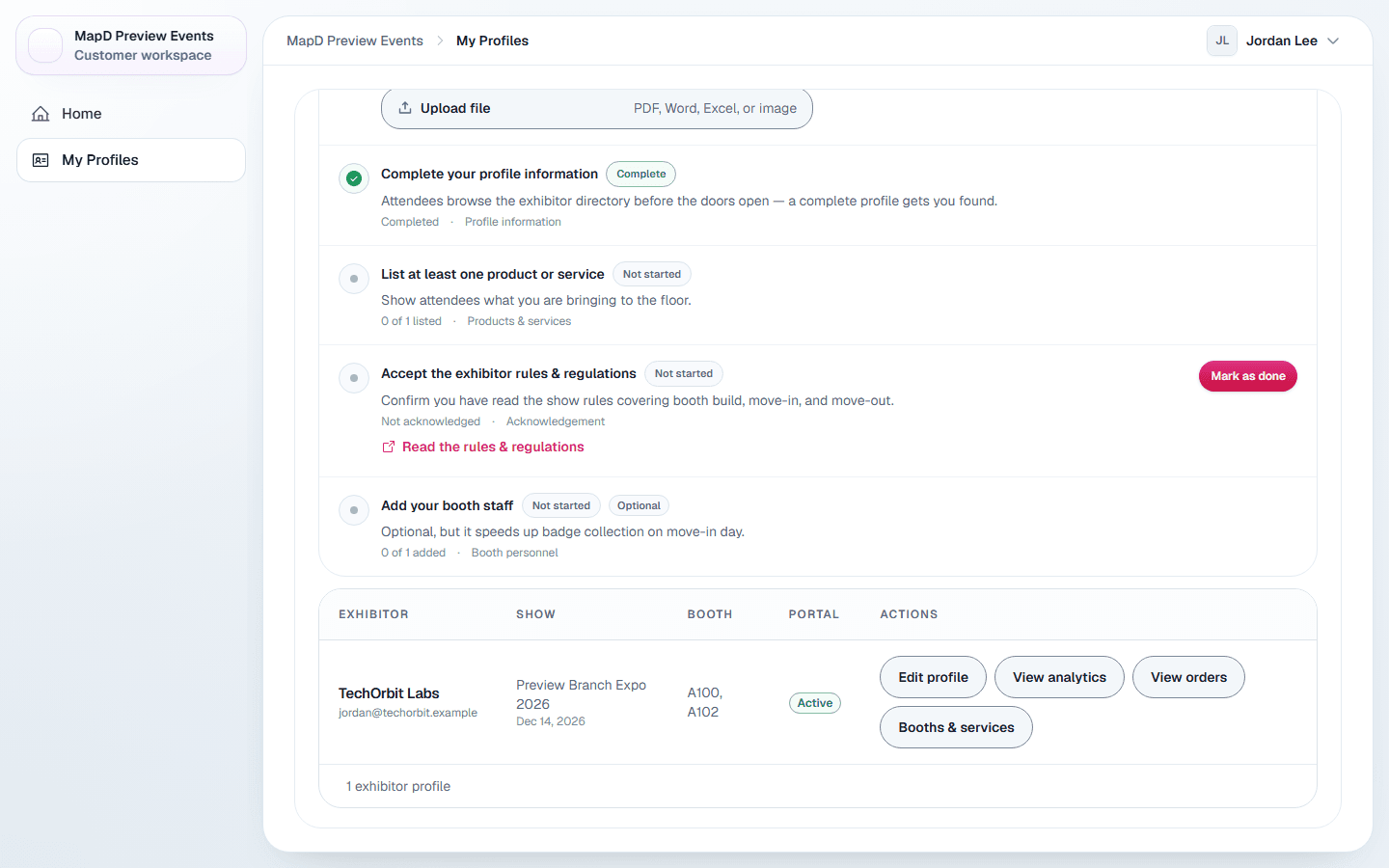
The profile list
Select the Exhibitor profiles tab if it is not already open. Each row shows:
| Column | What it shows |
|---|---|
| Exhibitor | Your company name and contact email. |
| Show | The show and its start date. |
| Booth | Your booth, or a dash if none is assigned yet. |
| Portal | Active once your account is set up, or Invited if setup is not finished. |
| Actions | Buttons for everything you can do for that show. |
If your show has an onboarding checklist, it appears above the list. See Complete your onboarding checklist.
The buttons on each row
Which buttons you see depends on what your show organizer has turned on.
- Edit profile: your company details, staff, products, photos and videos. See Edit your company profile.
- View analytics: how visitors engage with your profile. See See how visitors use your profile.
- View orders: what you have bought for this show. See View your orders.
- Documents: files and links your organizer shares with exhibitors, such as the exhibitor manual. It appears only when there are some.
- Booth and Services (your organizer may call it something else): buy services and extra staff spots. If your organizer sells through their registration page instead, the button reads Booths & services and opens that page in a new tab.
- Manage insurance: buy exhibitor liability insurance or upload your certificate. See Insurance and your certificate of insurance.
A show is missing from the list
- Rows only appear for shows where you were invited to the portal with this email address. If a colleague was invited instead, they see the row, not you.
- Your organizer may have locked portal access for your company. Locked profiles are hidden until they unlock them.
- If you exhibit with a different organizer, their shows are in a separate workspace. Use the organization switcher at the top of the sidebar to move between them. It only appears when you have more than one.
In each of these cases, your show organizer can check your access and resend the invite. See Your show organizer or Map D: who to ask.
Still need help?
For questions about your show, booth or invoice, contact your show organizer. Their contact details are in your invite and order emails. Who to ask
Last updated September 29, 2026