
Add your booth staff
Add the people working your booth, and what to do when you reach your personnel limit.
Booth personnel are the people from your company working at the show. They appear on your public profile so visitors know who to look for, and some can offer a meeting link.
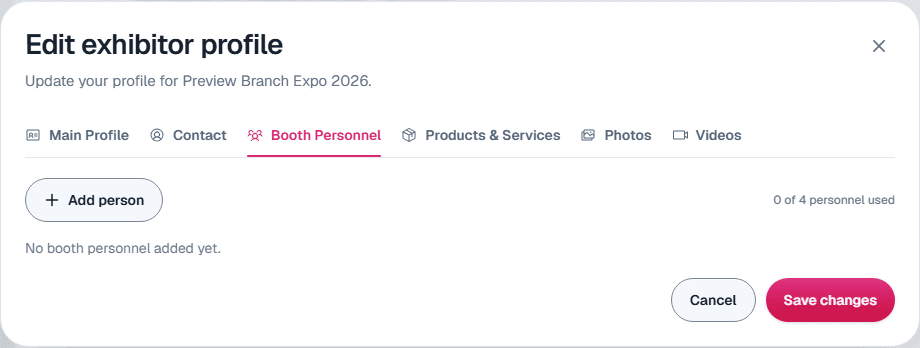
Add a person
Open the Booth Personnel tab
On My Profiles, select Edit profile, then the Booth Personnel tab.
Select Add person
Enter their First name and Last name (both required). You can also add a photo, title, personnel type (for example Sales or Support), email, phone, a Book meeting link and a brief bio.
Save
The person is saved straight away. There is no need to select Save changes afterwards.
What visitors see
Each person's name, title, photo, brief bio and Book meeting link appear on your public profile, on your show's website and in its mobile app. Leave a field empty to keep it off your profile. Email and phone are for your records and your organizer, and are never shown to visitors.
Use Edit or Remove next to a person to change them. Drag people to change the order they appear in.
How many people you can add
The tab shows how many spots you have used, for example "3 of 5 personnel used". Your limit comes from your booth package. Some shows have no limit.
When you reach your limit, Add person is disabled. If your organizer sells extra spots, the tab tells you which button on your profile row to use: usually Booth and Services, or Buy personnel spots if staff spots are all your organizer sells. See Buy services and extra staff spots.
Badges
Adding someone here lists them on your profile. It does not register them for a badge. Your show organizer will tell you how badges work for their show.
Still need help?
For questions about your show, booth or invoice, contact your show organizer. Their contact details are in your invite and order emails. Who to ask
Last updated September 25, 2026