
Sign in and set up two-factor authentication
Accept your invite, choose a password, and connect an authenticator app to your account.
You get into Map D from an invite email sent by a colleague in your organization, or by Map D when your account is first set up. After that, you always sign in on the same login page.
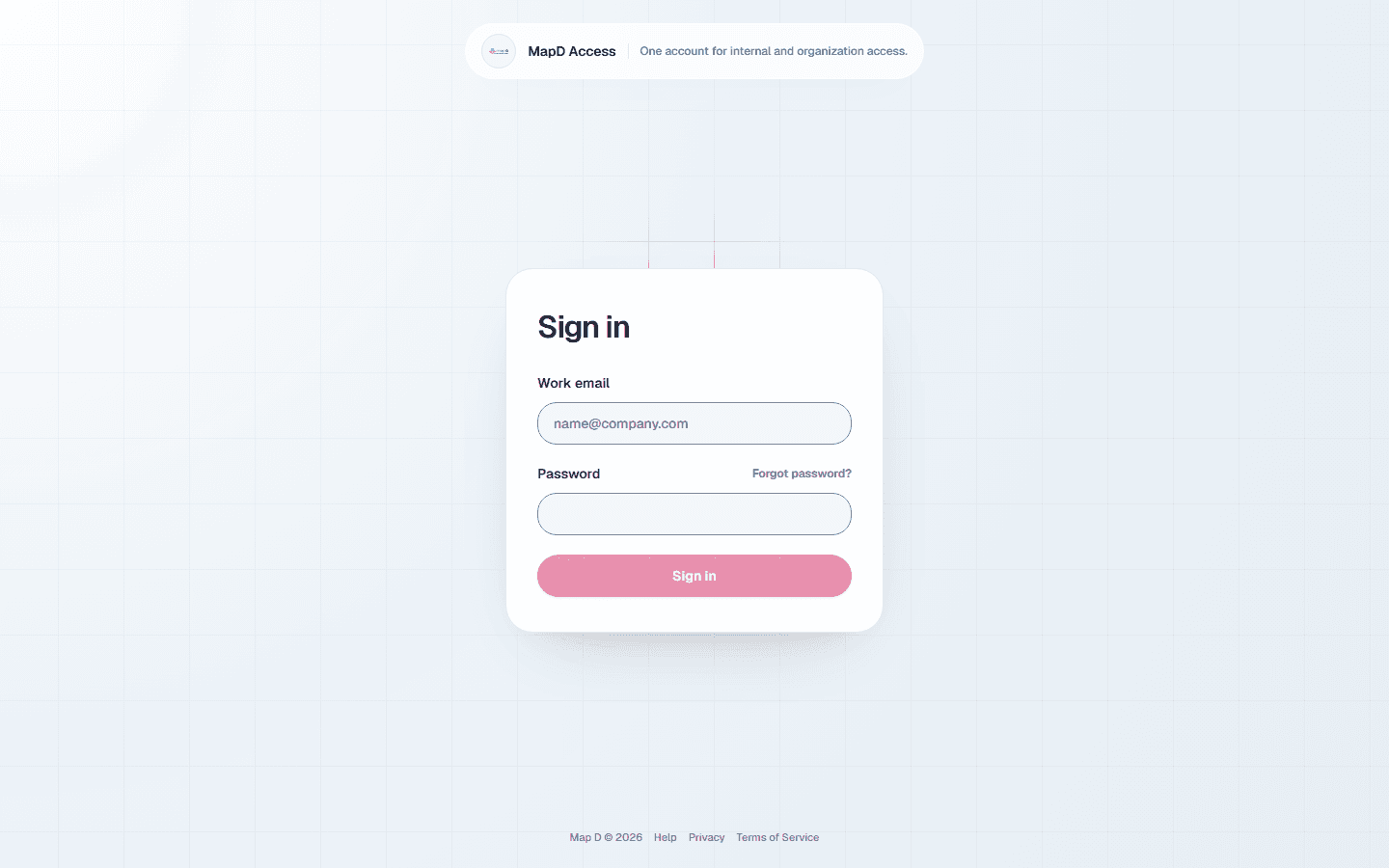
Accept your invite
Open the invite email
Look for an email inviting you to your organization's Map D workspace and select the button in it. Invite links stay valid for 30 days.
Choose a password
Your password must be at least 7 characters and include at least one letter and one number.
Sign in
You are taken to the login page. Sign in with your email and the password you just chose.
If your invite has expired, ask an Owner or Show Manager in your organization to resend it from Members.
Set up two-factor authentication
Map D protects your account with a second step: a 6-digit code from an authenticator app on your phone. The first time you sign in, Map D walks you through it.
Install an authenticator app
Any standard authenticator app works. Map D suggests Google Authenticator, Microsoft Authenticator, Authy and 1Password, and links to each in the app stores.
Scan the QR code
Open the app, add a new account, and scan the QR code on screen. The app starts showing a new 6-digit code every 30 seconds.
Enter the code
Type the current code from the app into Map D to finish. From now on, you enter a fresh code each time you sign in.
Accounts moved from your previous platform
If your account moved to Map D from your previous platform, the first time you sign in you are asked to review the Terms of Use and Privacy Policy. Select I accept to continue. You are asked once.
Forgot your password
On the login page, select Forgot password? and enter your email. Map D sends you a link to choose a new password.
Use a new email address
The email you sign in with can't be changed, by you or by Map D support. That keeps anyone from taking over an account by asking for its email to be changed.
If a team member's email address changes, an Owner of your organization invites the new address from Members with the same role, and removes the old one. The person accepts the invite from the new address.
Lost or replaced your phone
If you can no longer get codes from your authenticator app, you cannot finish signing in on your own. Contact Map D support and we will reset two-factor authentication on your account so you can set it up again on your new phone.
Still need help?
Contact your Map D account team. Include your show name and, if something looks wrong, a screenshot of the page.
Last updated September 30, 2026