
Invite your team
Invite colleagues as a Show Manager or Associate, and track or cancel pending invites.
Bring colleagues into your workspace so they can work on your shows. Each person signs in with their own account and gets the access their role allows.
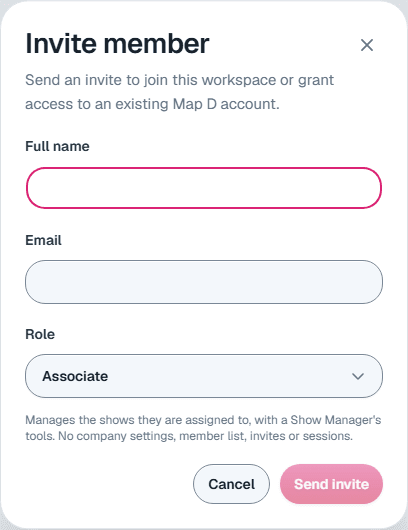
Invite someone
Open Members
Select Members in the organization sidebar, then Invite member.
Enter their details
Fill in their Full name and Email.Choose a role
Pick Show Manager or Associate. A short description under the picker explains what the role can do. See Roles: Owner, Show Manager and Associate.
Send the invite
Select Send invite. If the person already has a Map D account, they get access straight away and you see "Access granted". Otherwise they get an email to set up their account.
Track pending invites
Switch the toggle at the top of Members from Members to Pending to see invites that have not been accepted yet, with when each was sent and when it expires. Invites stay valid for 30 days.
From the menu on a pending invite:
- Resend: sends the invite email again.
- Cancel: withdraws the invite. The link stops working.
Neither asks you to confirm, so check the row before you select it.
Making someone an Owner
New members are always invited as a Show Manager or Associate. To make someone an Owner, an existing Owner edits their role after they join. See Manage members and sessions.
Still need help?
Contact your Map D account team. Include your show name and, if something looks wrong, a screenshot of the page.
Last updated September 25, 2026