
Company profile and branding
Update your organization's details, logo, favicon and colors, and what white label and custom domains change.
Your company details and branding appear across your workspace: in the sidebar, the browser tab and, if your organization uses white label, on the sign-in page.
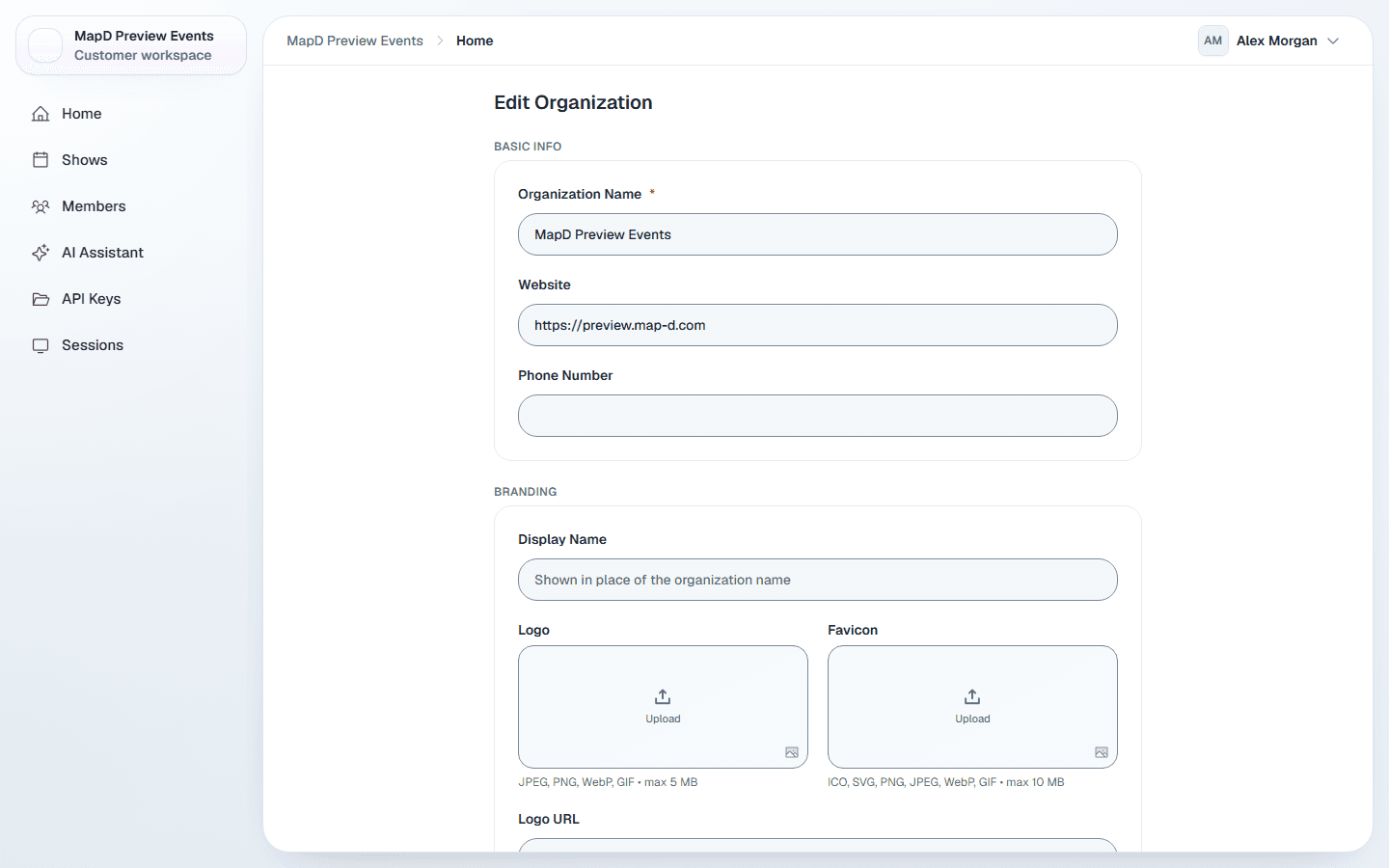
Edit your organization
Open Edit Organization
Select your name in the top right corner, then Edit Organization. Only Owners see this item.
Update the details
Change what you need in the sections below.Select Save Changes
Map D confirms with "Organization updated" and takes you back to Home.
Basic info and location
- Organization Name (required), Website and Phone Number.
- Your street address, city, state or province, postal code and country.
Branding
| Setting | Where it shows |
|---|---|
| Display Name | Shown in place of your organization name in the sidebar and the browser tab. |
| Logo | The sidebar organization switcher. JPEG, PNG, WebP or GIF, up to 5 MB. |
| Favicon | The small icon in the browser tab. ICO, SVG, PNG, JPEG, WebP or GIF, up to 10 MB. |
| Primary Color | The accent color used across your workspace. |
| Tagline | The line under your name in the sidebar. |
You can also paste a Logo URL or Favicon URL instead of uploading a file.
White label and custom domains
Some organizations have Map D set up white label and a custom domain, such as events.yourcompany.com. These are set up by Map D, not in Edit Organization. Contact Map D to arrange them.
With white label on:
- Your display name, logo and tagline replace Map D's on the sign-in page, and the browser tab reads your name.
- Visitors to your custom domain who are not signed in see your branded sign-in page.
- The Map D help center is available on your domain too, at
/help.
Still need help?
Contact your Map D account team. Include your show name and, if something looks wrong, a screenshot of the page.
Last updated September 25, 2026