
Booths and services
Override prices, hold booths back, and create the services, add-ons and sponsorships you sell.
Booth Setup > Booths & Services is where you manage each booth on your floor plan and everything else you sell. Switch between the Booths and Services views at the top.
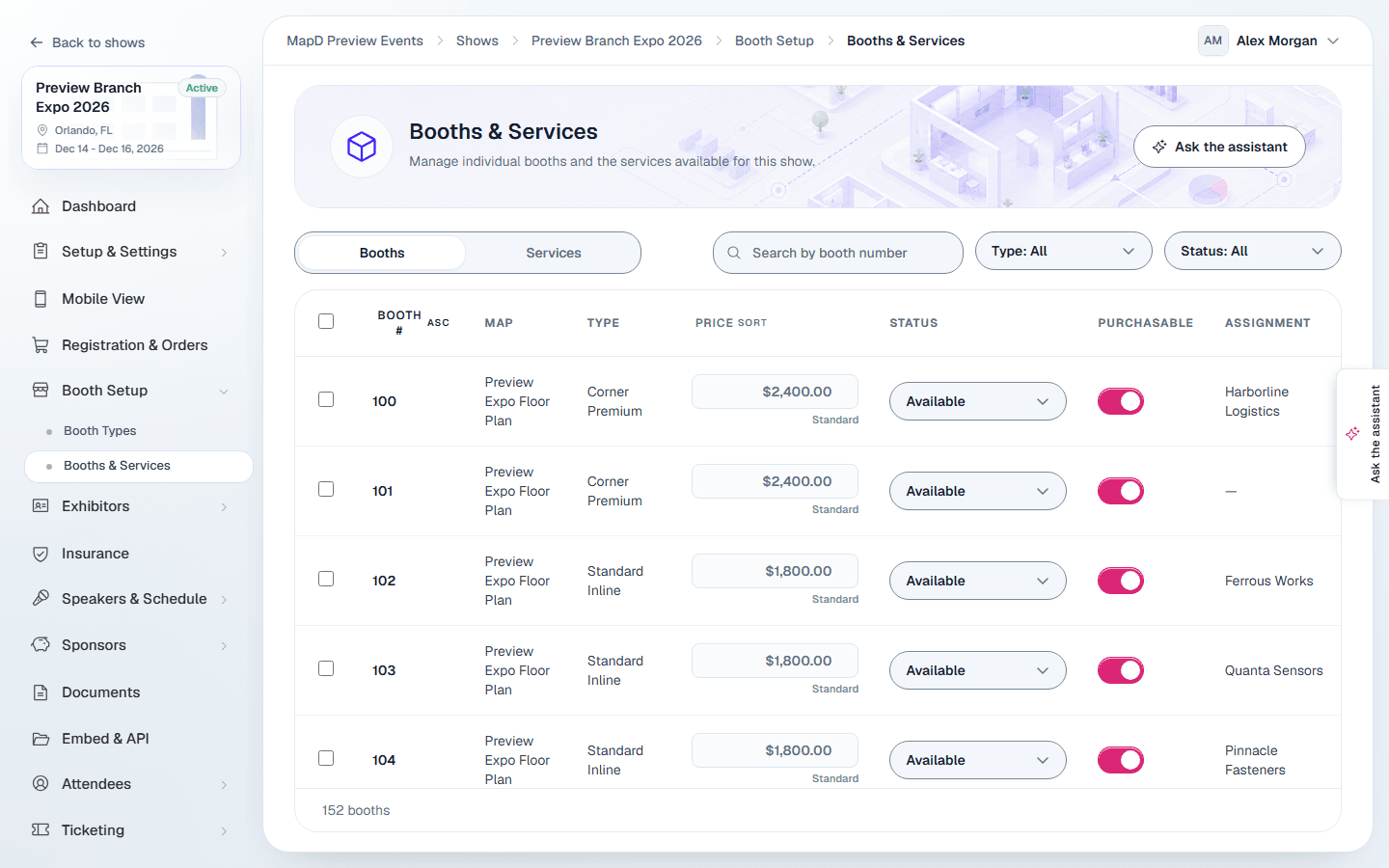
Booths
Every booth from your published floor plan is listed with its map, type, price, status, whether it can be bought online, and who it is assigned to. Search by booth number or filter by type and status. When your show has more than one map, use the Map filter to list only the booths on one map, such as an outdoor lot.
On a large show the list opens with the first 200 booths and loads more as you scroll down, or when you select Show more booths. The count below the list, such as Showing 200 of 2,585 booths, always counts every booth that matches your search and filters. Search, filters, sorting and the select all checkbox work across all of them, not only the rows already loaded.
Booth statuses
| Status | Meaning |
|---|---|
| Available | Open for sale. |
| Held | In a buyer's cart or an order waiting for payment or approval. |
| Sold | Bought or assigned. |
| Reserved | Held back by you, for example for a sponsor. It cannot be bought online. |
Change a booth
- Price: type a new price in the row to override the booth type's price. The caption changes from Standard to Override. Clear the field to go back to the standard price.
- Hold a booth back: set its status to Reserved. Set it back to Available to release it. Held and sold booths cannot be changed this way.
- Purchasable: turn it off to keep a booth off the online floor plan.
Select a booth to open its details, including the price breakdown, included services and add-ons, and assignment.
Keep a booth for an exhibitor
A Booth code keeps a booth for one exhibitor, for example a returning exhibitor rebooking their spot. The booth stays on the online floor plan as available, but only a buyer who enters the code can select it.
- Set a code: select the booth and type it in Booth code. It saves when you leave the field. You can also set it in the map editor, on the booth's Purchase Settings, where you can put one code on several selected booths at once.
- Send the code to the exhibitor yourself, for example by email. Map D never shows it to buyers.
- Remove a code: clear the field. Anyone can then buy the booth.
Codes aren't case-sensitive, so Acme2026 and acme2026 both work. A booth that is held or sold can't have its code changed. Buyers who enter too many wrong codes have to wait a few minutes before they can try again.
To hide the price of these booths until the exhibitor enters the code, turn on Booth codes on the Checkout tab of your sales settings. See Set up payments.
Change many booths at once
Tick the booths you want and choose an action from the bar that appears: set available or reserved, mark purchasable or not, set or clear a price override, or Create order. Held and sold booths are skipped.
Services
Services are everything else you sell: furniture, electrical, lead retrieval, sponsorships and so on. Select Add item to create one:
| Field | What it's for |
|---|---|
| Name, Description, Category | How the service appears at checkout and in the exhibitor portal. Services are listed under their Category, exactly as you name it, in the order of the list. |
| Status | Active items are for sale. Draft and Inactive items are hidden. |
| Type | Booth service, Add-on or Sponsorship. A sponsorship is tied to a Sponsor level. |
| Requires booth | The service can only be bought with a booth in the order. Turn it off to sell it on its own. |
| Includes a booth | Each one bought makes a booth in the order free. See below. |
| Price | The price per item. |
| Per-order limit | The most one order can include. |
| Limited inventory | Track a finite quantity. Checkout shows how many are left. |
| Applies to | Limit the service to certain booth types. |
Select Save service. Remove does not delete a service: it sets it to Inactive, and you can reactivate it later.
Services that include a booth
Turn on Includes a booth for a package that covers the exhibitor's booth, such as a sponsorship. For each one an exhibitor buys, checkout makes one booth in their order free. If the service applies to certain booth types (Applies to), only a booth of one of those types can be free. The exhibitor still picks the booth on the floor plan. When more than one booth qualifies, the lowest-priced one is free, and checkout shows it as included with the service.
Still need help?
Contact your Map D account team. Include your show name and, if something looks wrong, a screenshot of the page.
Last updated September 29, 2026